> ## Documentation Index
> Fetch the complete documentation index at: https://portkey-docs-feature-comparison-update.mintlify.site/llms.txt
> Use this file to discover all available pages before exploring further.
# Overriding Model Details
> Learn how to set custom pricing for any base model in your Portkey Model Catalog to reflect your specific costs.
Portkey's Model Catalog automatically includes the standard pay-as-you-go pricing for supported models, which is used to calculate costs on your dashboard. However, you may have different pricing arrangements with your model providers, such as negotiated discounts, committed use contracts, or your own internal pricing for private models.
To ensure your cost and usage analytics are accurate, Portkey allows you to override the default pricing for any model in the catalog.
## How to Override Model Pricing
You can change the pricing for any model directly from your Portkey dashboard.
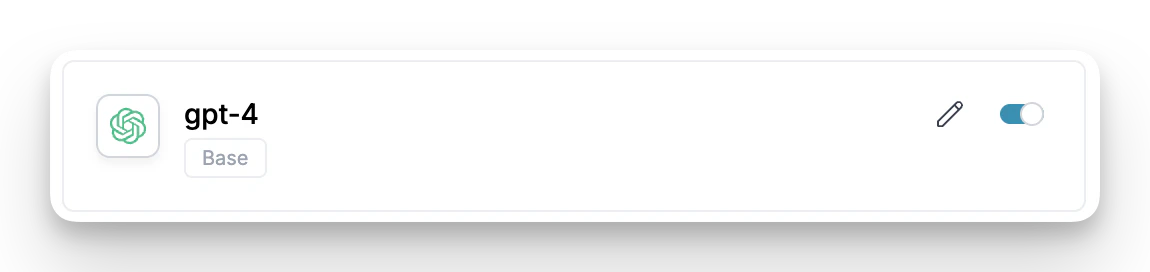 1. Navigate to the relevant [**Integration**](https://app.portkey.ai/integrations) in your Portkey account, select the Integration for which you want to add a custom model.
2. Select the **Model Provisioning** step from steps.
3. Find the model whose pricing you want to change in the list.
4. Click the **Edit** (pencil) icon on the right side of the model's row.
This will open a form where you can set your custom pricing.
1. Navigate to the relevant [**Integration**](https://app.portkey.ai/integrations) in your Portkey account, select the Integration for which you want to add a custom model.
2. Select the **Model Provisioning** step from steps.
3. Find the model whose pricing you want to change in the list.
4. Click the **Edit** (pencil) icon on the right side of the model's row.
This will open a form where you can set your custom pricing.
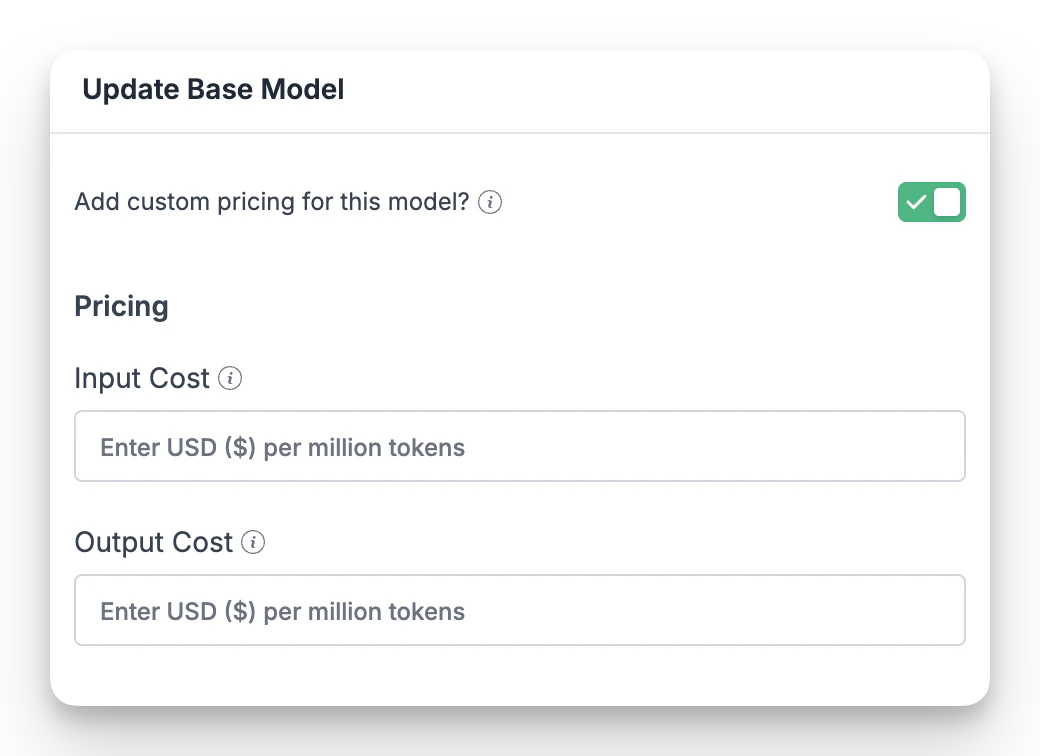 ### Pricing Fields
When you edit a model, you can set the following pricing values:
Enter your custom cost for **1 million input tokens** in USD. This is the cost associated with the tokens you send to the model.
Enter your custom cost for **1 million output tokens** in USD. This is the cost associated with the tokens the model generates in response.
Once you save the changes, Portkey will use these new rates to calculate the cost of all subsequent requests made with this model, providing you with an accurate view of your AI expenditure.
### Pricing Fields
When you edit a model, you can set the following pricing values:
Enter your custom cost for **1 million input tokens** in USD. This is the cost associated with the tokens you send to the model.
Enter your custom cost for **1 million output tokens** in USD. This is the cost associated with the tokens the model generates in response.
Once you save the changes, Portkey will use these new rates to calculate the cost of all subsequent requests made with this model, providing you with an accurate view of your AI expenditure.